AVImark CSV Mapping Guide
Export controlled-substance records from AVImark (McAllister Software) and map the columns to VetRx Ledger's import format.
Overview
AVImark (McAllister Software) stores controlled-substance dispensing records in its Treatment and Invoice modules. Depending on your version, you may have a dedicated Controlled Substance Log report or need to export from the broader Treatment History report and filter down. Both paths produce a CSV that maps cleanly to VetRx Ledger.
Step 1 — Export from AVImark
- Navigate to Reports → Treatment History (or Reports → Controlled Substance Log if available in your version).
- Set the date range to the period you want to migrate (e.g. Jan 2022–Dec 2023).
- Filter by treatment category: select Controlled Substances or Schedule II–V only. This avoids importing non-controlled items.
- Click Export to CSV or Print → Save as CSV.
- Save the
.csvfile to a local drive. Do not open it in Microsoft Excel before importing — Excel may silently reformat dates (e.g.Jan 15, 2024→1/15/24) and lot numbers (e.g. treating06E4as scientific notation).
Step 2 — Column mapping
Open the CSV in a plain text editor (VS Code, Notepad++, TextEdit in plain text mode) to inspect the header row. Match your AVImark column names to VetRx Ledger fields:
| AVImark Column | VetRx Ledger Field | Format | Notes |
|---|---|---|---|
Service Date or Date | date | YYYY-MM-DD or MM/DD/YYYY | Import wizard accepts both |
Treatment or Drug Name | drug | Free text | Should match or be close to your vial drug name in VetRx |
Qty Dispensed or Units | qty | Positive number | Decimals accepted (e.g. 2.5) |
Doctor or Dr. ID | dvm_id | String | Use initials or staff ID for minimal PII |
Staff or Technician | tech_id | String | Use initials or staff ID |
Lot # (if present) | lot | String | Leave blank if AVImark did not capture lot numbers |
Expiration (if present) | expiry | MM/YYYY or YYYY-MM-DD | Optional; helps match to existing vials |
Notes or Comments | notes | Free text | Optional; carried through to the event record |
| (derive — not in AVImark) | type | DRAW or WASTE | Set all dispensing records to DRAW; add separate WASTE rows if tracked |
Step 3 — Prepare the VetRx CSV file
The VetRx Ledger import wizard accepts a CSV with these column headers (order does not matter; additional columns are ignored):
date,type,drug,qty,dvm_id,tech_id,lot,expiry,notesExample rows:
date,type,drug,qty,dvm_id,tech_id,lot,expiry,notes
2024-01-15,DRAW,Ketamine 500mg/10mL,2.5,DVM-001,TECH-03,LOT-2024A,2025-06,Feline castration
2024-01-15,WASTE,Ketamine 500mg/10mL,0.5,DVM-001,TECH-03,LOT-2024A,2025-06,Residual waste
2024-01-16,DRAW,Butorphanol 10mg/mL,1.0,DVM-002,TECH-01,,,Post-op analgesia
Step 4 — Run the import
- Navigate to /import in VetRx Ledger.
- Upload your prepared CSV. The import wizard shows a preview of the first 10 rows with column-mapping selectors.
- Map each CSV column to the corresponding VetRx Ledger field using the dropdowns. The wizard validates date formats and flags unknown event types before you commit.
- Click Import. Records are imported sequentially; a progress counter and error list appear.
- After import, navigate to /ledger/verify to run a hash-chain verification — this confirms all imported records were written correctly.
Common issues
- Date format mismatch: AVImark sometimes exports
Jan 15, 2024. Use Find/Replace in a plain text editor (not Excel) to convert to2024-01-15before importing. - Lot numbers as scientific notation: If Excel was used to view the file, lot numbers like
06E4may have been converted to60000. Re-export the original CSV and view only in a text editor. - WASTE records not in AVImark: AVImark typically records only the dispensed quantity. If waste amounts were tracked in the Notes field, parse them out and create separate
WASTErows in the import CSV. - Missing lot numbers: If AVImark did not capture lot numbers, leave the
lotcolumn blank. Use your physical inventory count to add lot numbers to existing vials in VetRx Ledger separately.
source: "csv_import" and cannot carry cryptographic dual-witness tokens or WebAuthn e-signatures. They serve as a historical baseline. All new events recorded directly in VetRx Ledger will be fully signed and hash-chained from import date forward.Column Mapping Diagram
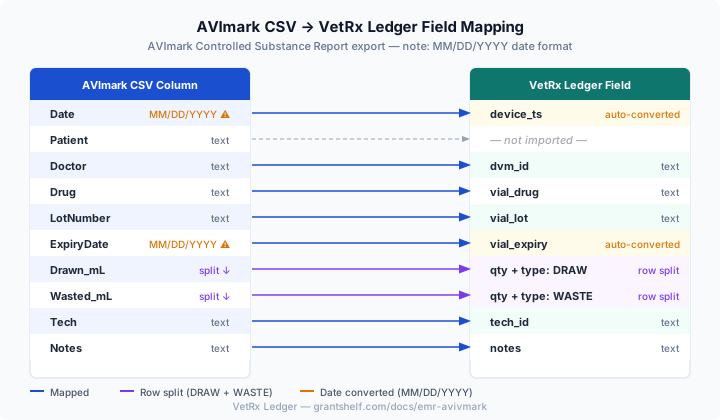
The diagram below shows how each AVImark column maps to VetRx Ledger. Purple arrows indicate row splitting (each AVImark row produces separate DRAW + WASTE ledger events). Orange indicates date format conversion from MM/DD/YYYY to ISO 8601.
Download Sample CSV
Download this 15-row sample file to test the import wizard before migrating your live AVImark data. The sample uses AVImark’s MM/DD/YYYY date format and combined Drawn_mL / Wasted_mL columns requiring row-split transformation.
⬇ Download AVImark Sample CSV